What it does

Everything between pressing record and handing over the file

CamScribe is one application, not a recorder plus an editor plus a caption tool. The take, the timeline, the cards, the captions and the export are one document with one undo history.

Every claim on this page is read out of the product's own implementation status document. CamScribe is in development: all of this is built and tested, and none of it has yet been measured across a range of Mac hardware.

Capture

Sources, tracks and the things that go wrong

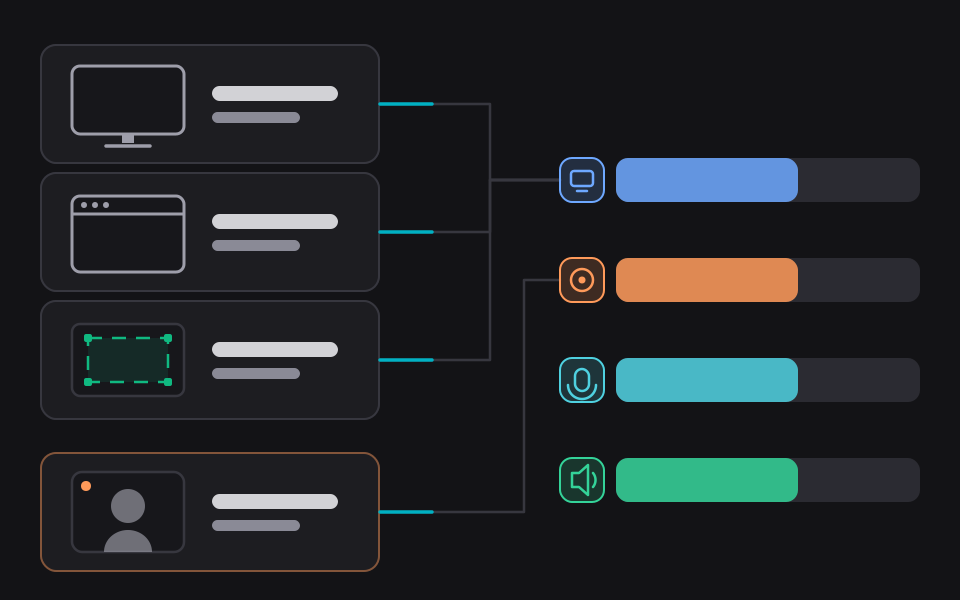
Four tracks, four writers, four files. Media is written as fragmented chunks that rotate every 300 seconds, and a chunk is listed in the index before it closes, so a crash leaves recovery an explicit pointer at the incomplete tail. The index is checkpointed every 2 seconds.

Recovery reassembles by copying sample data verbatim rather than re-encoding it, so a recovered recording is not a generation older than the one you made.

  • Screen. A display, a window, or a region you drag. Capture sizes are multiplied by the display scale and rounded to even, because a hardware encoder rejects an odd dimension outright.
  • Camera. Built-in, USB and Continuity cameras, discovered with their formats and frame rates negotiated, with optional mirroring.
  • Audio. Microphone and system audio. System audio can include or exclude particular applications, so the chat notification stays out of the tutorial.
  • Encoder resilience. A display in a wide or high dynamic range mode can hand over colour tags the encoder refuses after it has already accepted the settings. The writer carries a fallback ladder and restarts rather than losing the track.
  • Honest failure. A manifest that names a media file must name one that exists and is not empty. A track that fails that is reported as a failure with a plain sentence, and the empty file is deleted so nothing downstream is fooled by a path.
Sources and modes
Capture sources: a whole display, a single window and a drawn region, with a camera source beside them and four independent tracks written underneath.
Three modes

Pick what the video is, not what the tool is

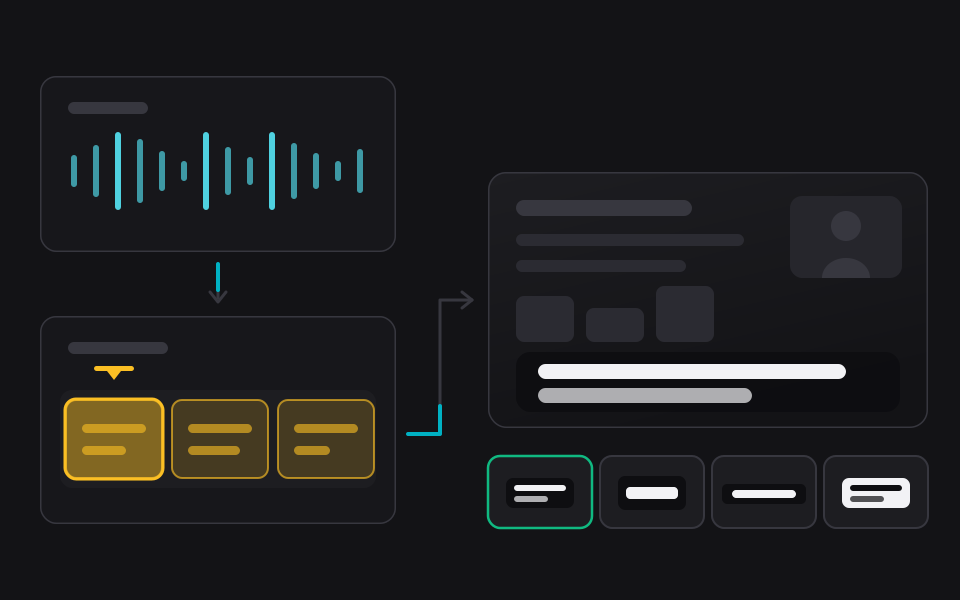
The mode decides which tracks exist and what the canvas is composed from. Everything after that works the same way.

Screen and camera

The screen with the presenter beside it or over it. The camera plate has its own shape, position, corners, shadow and background, and it can be removed from the finished video without touching the narration.

Screen only

No camera track at all. The same canvas, the same zooms, the same cards, the same captions.

Camera video

The camera as the subject rather than the aside, for a piece to camera with no screen behind it.

Each mode composes onto any of the four canvas shapes, and the stage template gives every shape its own starting camera size, camera position and padding. A tall source, such as an upright window or a region you drew taller than it is wide, gets the presenter in the column beside it, or standing under it on 9:16 where there is no column.

The prompter
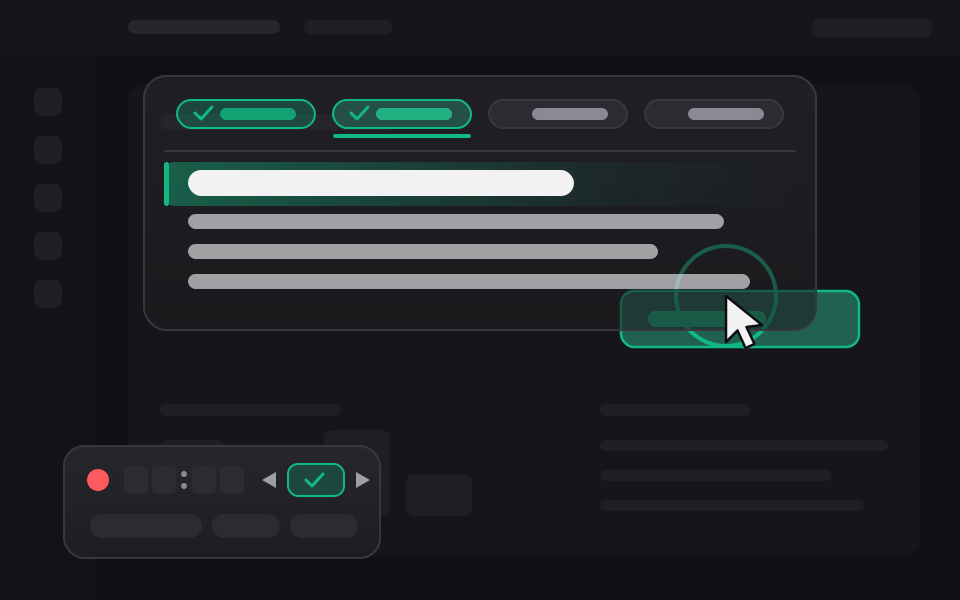
A prompter window floating over a screen being recorded, showing a script in reading type with the current line highlighted, and a checklist of talking points beside it.
Prompter

One list, two shapes, and it never takes the mouse

Talking points are written before the take and shown during it, in all three recording modes. Every control lives on the recorder panel and on a global shortcut, so you are never reaching for a window while recording.

The list is content rather than a preference, so it clears when you set up the next recording. Your look, your pace and your saved libraries carry over.

  • Checklist and script. A headline alone is a checklist row. A headline with a script is a teleprompter beat. Both come from the same list.
  • Click through. The prompter takes no mouse events at all, so a click lands on the application underneath it. It fades when your pointer crosses it rather than moving.
  • Reading pace. The scroll is planned from the words themselves: every word is costed by a syllable estimate, with a pause added for a full stop and a shorter one for a clause.
  • Kept out of the file. Excluded from capture the same two ways the recorder panel is, and it declines to appear at all rather than cover the stop button.
Camera

Face detection while you record, face centring after

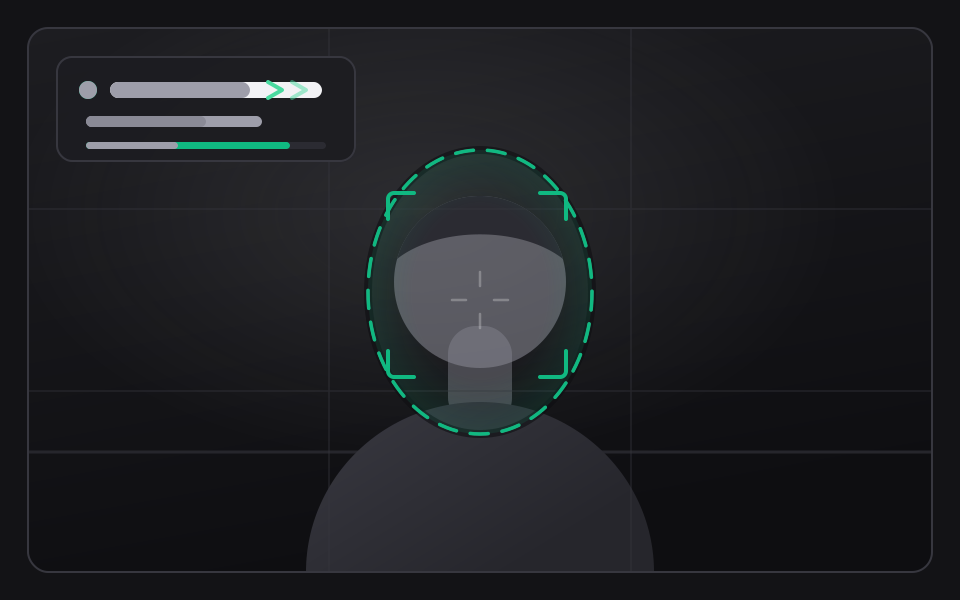
The framing guide answers the question a self view does not: not "where am I" but "where should I be". After the take, the editor can set the camera centre from the face it actually finds rather than from where you guessed it was.

None of this is a black box you have to trust. Every on-device model is checked against a signed manifest before it is loaded, and every one has a deterministic rule behind it that takes over when the model is missing, when verification fails, when the Mac is thermally stressed, when Low Power Mode is on, or when you have simply switched it off. That rule is a tested path rather than dead code: CamScribe records, edits and exports correctly with no models installed at all.

  • Live guide. Face detection runs on the preview and drives a framing guide with adjustable contrast. It is a preview surface and never reaches the file.
  • Centre from the take. In the editor, analysing the camera track samples frames across its length, takes the largest face in each and sets the camera plate’s centre from the median. One reversible command.
  • Coaching notes. Lighting and presence notes appear as suggestions on a panel, never as an automatic correction. The models behind them were trained on generated data and have not been validated against real captures, so each has a deterministic fallback, and occlusion and multiple faces are read from the system’s own landmark visibility and face count rather than from a model at all.
  • Background replacement. Alpha matting with light wrap and despill, composited in linear light so the edge does not fringe. The settings live in the project and are undoable.
Face detection and centring
A camera preview with a detection box locking onto the presenter's face and the frame settling so the face sits on the centre of the plate.
Timeline

Sparse tracks, absolute positions, integer time

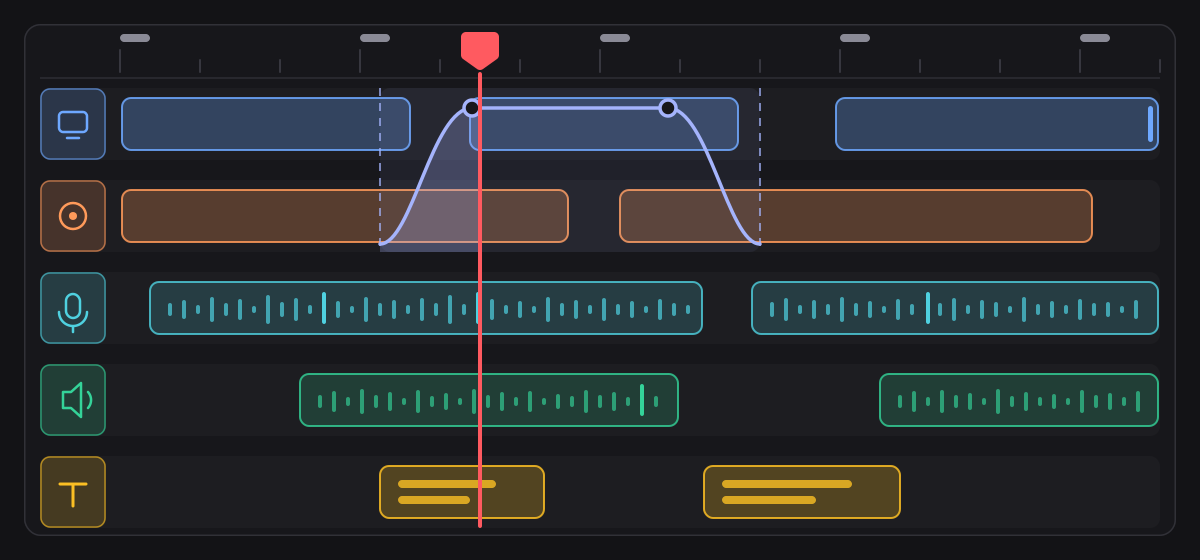
Seven track kinds over three layers. Clips are sparse and placed absolutely, so a gap is the absence of a clip rather than a spacer, and a rounding difference on one track can never shift everything after it relative to another track. Positions are integers on a 90 kHz timebase and clip speed is an exact reduced fraction, so drift does not accumulate with length. A looped clip tiles a passage rather than duplicating it.

56 reversible commands, each computing its own exact inverse from the live document, with a 256 entry history and gesture coalescing over a 320 millisecond window. Chapters, titles and captions are siblings rather than special cases, and captions sit on their own lane so hiding subtitles does not hide your lower thirds.

The multi-track timeline
A multi-track timeline with separate screen, camera, microphone and system audio lanes, sparse clips at absolute positions, a zoom automation span and a playhead sweeping across.
One primitive

Five effects that are all the same control

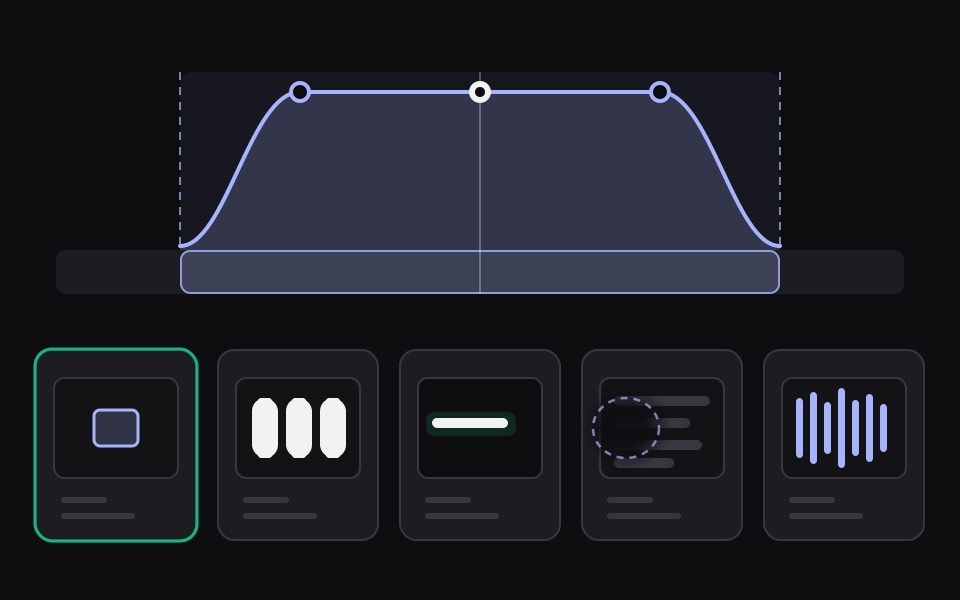
Zoom, blur, highlight, mask and volume are one automation span with one envelope, one set of handles and one mental model. Learn to place one and you can place all five.

Each parameter has a documented neutral value and documented bounds, and the shape and feather belong to the ones that read them. A span is either bounded or it covers the whole timeline, and its range is re-derived every time the document is sanitized.

A single automation span shown driving zoom, blur, highlight, mask and volume in turn, with its envelope curve above the affected region.
  • ZoomFrom 1.05 to 4.0 magnification, on a region you pick, with a readable dwell enforced.
  • BlurOver a shape you place, for the part of the screen nobody needs to read.
  • HighlightThe inverse: draw the eye to one region and let the rest recede.
  • MaskA shape with a feathered edge, for covering something rather than blurring it.
  • VolumeFrom -60 to +18 dB, with the same envelope and the same handles.
Segment retake
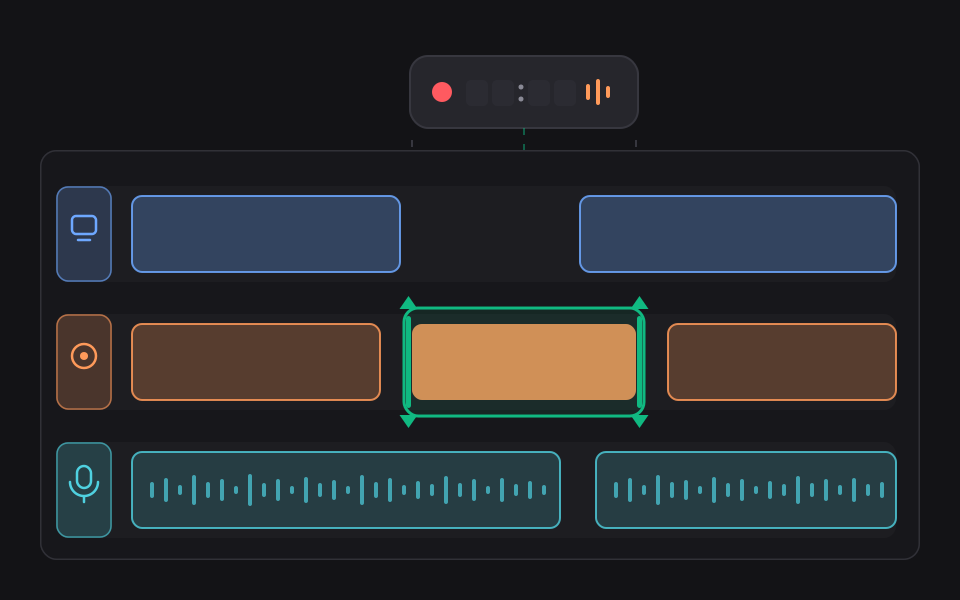
A selected region on one timeline lane being re-recorded and spliced back in place, with the neighbouring clips and the other lanes left untouched.
Retake

Re-record the part that went wrong, not the take

Select the region, record it again, and it is spliced back in place. The editor does not need to be closed to do it.

  • Overwrite. The default. The region stays exactly as long as it was and nothing after it moves.
  • Ripple. The new material can be a different length and everything after it shifts to make room.
  • Fit. The new material is retimed to fill the old space exactly. Refused on audio, because that needs pitch correction and doing it without sounds wrong.
  • Per track, per lane. Screen and system audio retake through the recording writer itself, so every guard the recorder has still applies. A lane that cannot be reproduced says so rather than opening a sheet that would fail.
Cards

Title cards spliced in, not laid over

A title over a shot competes with the shot. A card between shots does not. CamScribe treats a card as an interstitial: during the card there is no recording underneath it.

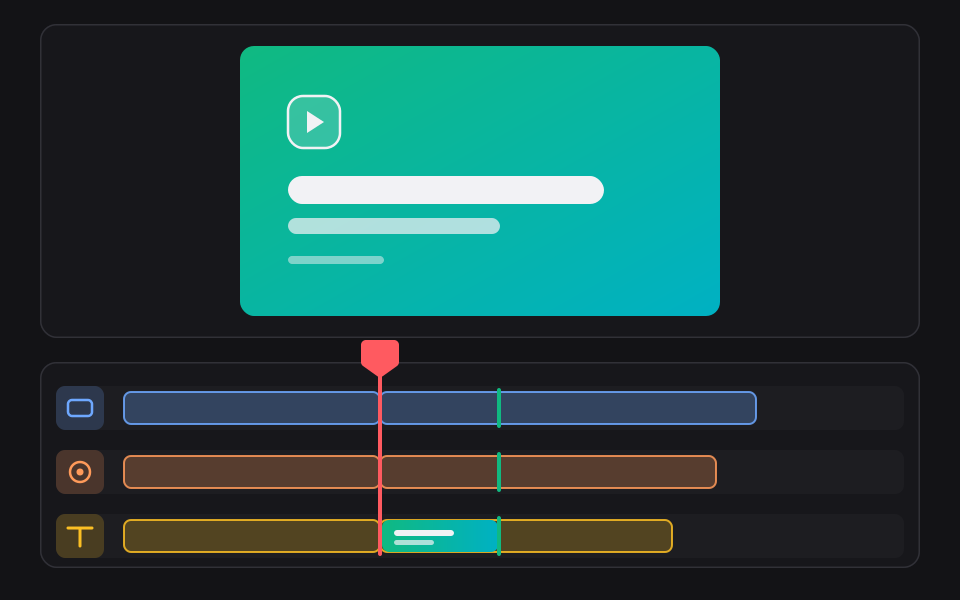
  • A card makes room. Inserting one splits every lane at the playhead and moves everything after it later by exactly the card’s own length, as one transaction and one undo.
  • 51 templates. Authored as data and validated by the engine, carrying 257 named motion variants over the same elements.
  • Shape independent. Every length in a template is a fraction of the canvas, so one card adapts to all four output shapes by construction rather than by four layouts that have to agree.
  • 4,344 icons. A searchable icon set registered privately to the process, searchable by name, label, synonym, alias and category.
Title and intro cards
A title card being spliced into the middle of a recording: every lane splits at the playhead and the material after it moves later by exactly the length of the card.
Stickers
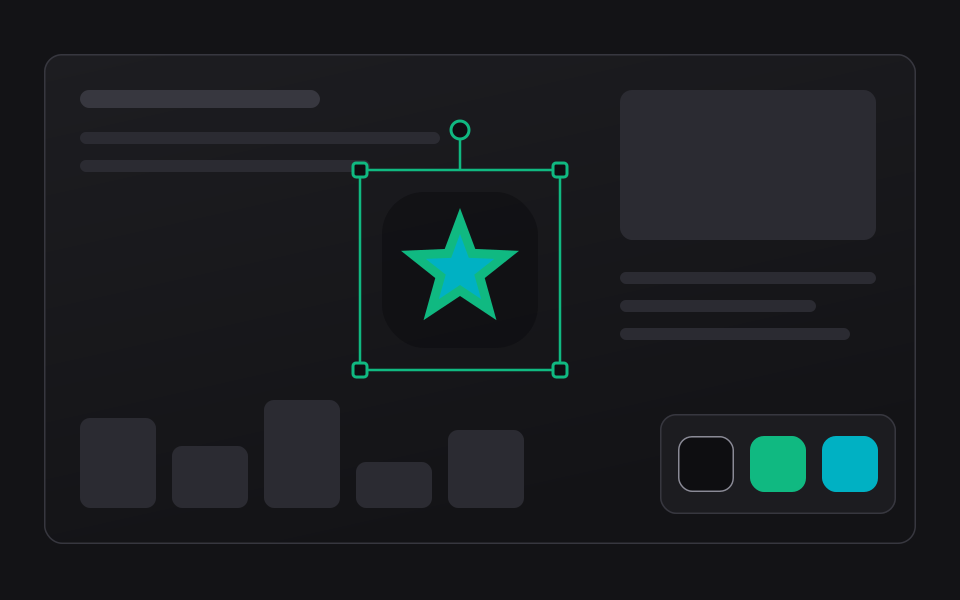
An icon placed over the picture as a sticker, then moved, resized and turned by its handles, with a second colour applied to its duotone layer.
Stickers

Drag an icon onto the picture and put it where you mean

The same icon set the cards draw from, over the picture, for the range you want it. An agent can place and remove one too.

  • Direct on the canvas. Move it, resize it, turn it and colour it by dragging it, over the range you choose.
  • An overlay, never a splice. A sticker sits beside a title rather than beside a card, and follows the same rules under every structural edit.
  • Survives every shape. Everything a sticker stores is a fraction of the canvas’s shorter edge, so one sticker works in all four output shapes.
  • Three colours. A duotone glyph gives it two independently coloured layers, and a badge behind it gives it a third.
Captions

Transcribed on the device, drawn into the picture

On macOS 26 and later, transcription uses the system's newer speech analyser, which takes the whole file in one call and carries a time range per word. Below that it falls back to the older recogniser, which is a tested path rather than dead code.

The difference was measured rather than assumed, and it was large: the older recogniser answers with one utterance per pass and says nothing about the rest, so a whole recording handed to it in one call can come back as its last sentence alone with no error and no truncation flag. That is why the fallback path cuts a recording into passes at its own silences rather than at a fixed length.

  • Local transcription. Speech recognition runs on the Mac using the system’s own models. Your audio is never sent anywhere to be transcribed.
  • An editable lane. Edit the words, move a cue, set how long it runs, split one at the playhead, merge two and absorb the gap, delete one, or write one by hand. Each is one transaction and one undo.
  • Burned in. Cues are composited into the frame through the same pipeline as everything else, so they survive any player. A SubRip or WebVTT file is a secondary action.
  • Four looks. Presets plus bounded controls for the font, the size, the two colours, and the band’s edge and distance from the frame.
Captions burned into the picture
Speech transcribed on the device into cues on a captions lane, and the same cue drawn into the exported frame as a caption band.
Export

What you saw is what gets written

Preview and export are one Core Image pipeline, compositing in linear light, held to being one by a test that renders both and compares them.

Container
MP4
Codecs
H.264, HEVC
Up to
4K with Pro
Shapes
16:9, 9:16, 1:1, 4:5
  • Codec capability is probed from the system rather than assumed: what is offered is the intersection of what the engine can schedule and what this Mac can encode in hardware.
  • The frame schedule and the audio schedule are two views of the same tick positions, computed exactly with no accumulating counter, which is why ten minutes of NTSC comes out as exactly the right number of frames.
  • The export queue is persistent. It survives a relaunch, resumes a job that was mid encode, retries with a growing backoff, and then gives up and says so.
  • Without Pro, an export carries a mark and is capped at 1920 by 1080 on its long edge. Both come from the same delivery plan the preview is built from, so the editor shows you the mark in the corner the file will carry it, rather than surprising you afterwards. Everything else, including recording and the entire editor, is free and unlimited. What Pro costs.
One pipeline, one export
The same render pipeline feeding the preview and the exported file, with the four canvas shapes and a queue of export jobs beside it.
Early access

CamScribe is in development. Come and break it.

It is built, it is tested, and it has never met your hardware. If you record on a Mac and you would rather tell us what is wrong than wait for it to be finished, ask Olib AI for a build.